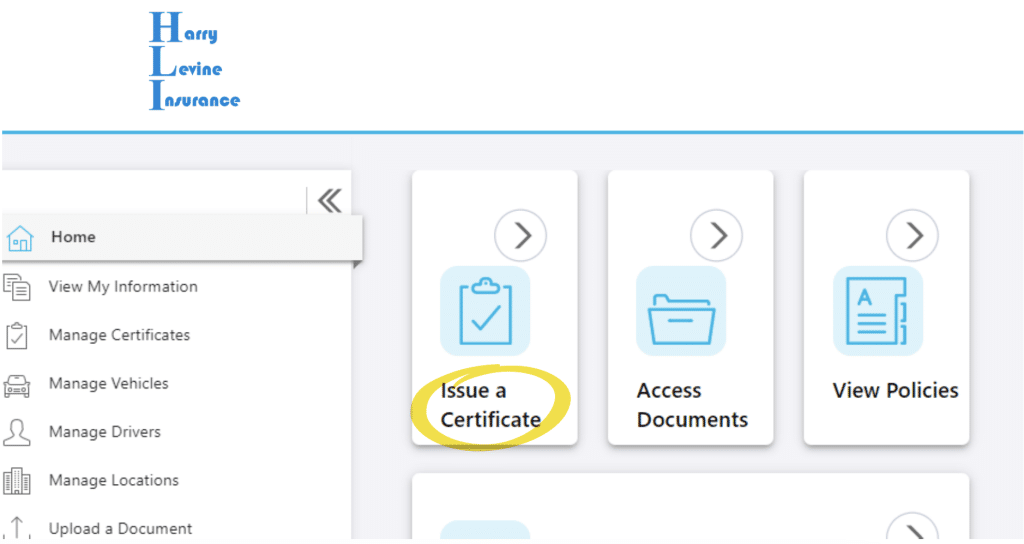
1. Click the Issue, Resend, Review Certs button on the home screen.
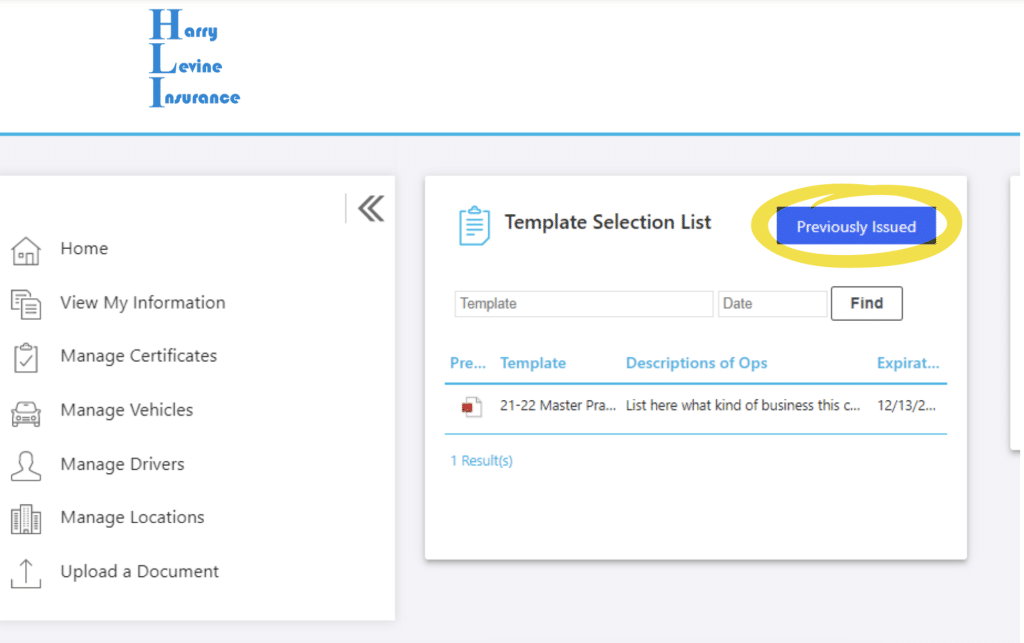
2. When the “Certificate Selection List” appears, click the Previously Issued button in the upper right. Think of the button in the upper right as a toggle switch, flipping between viewing a list of previously issued certificates and the template screen from which you can issue a new certificate.
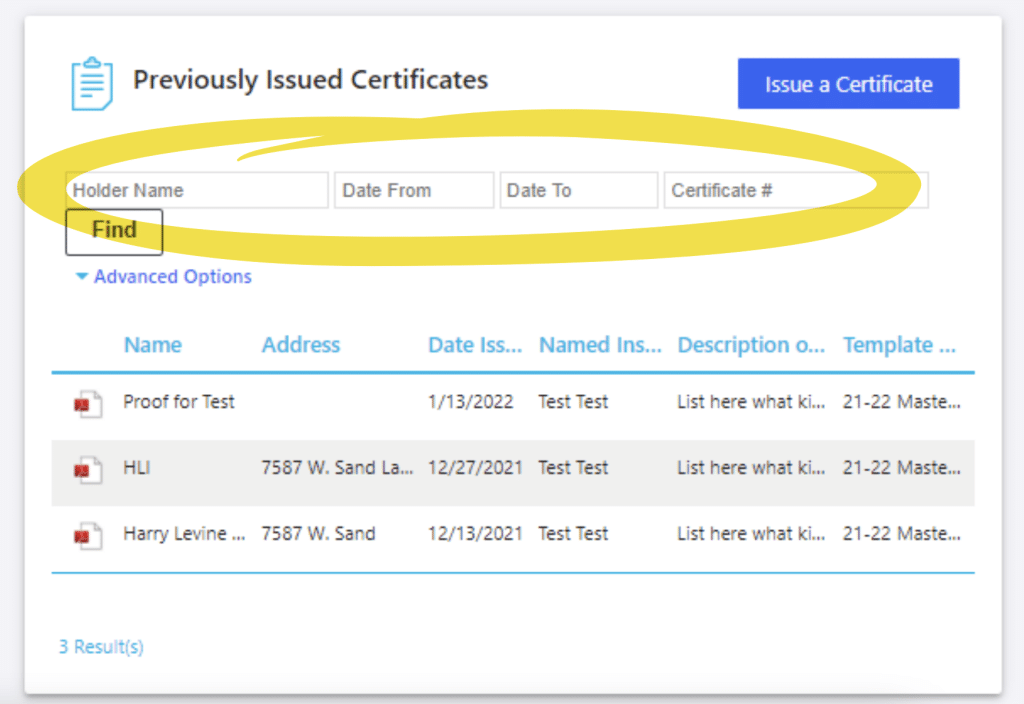
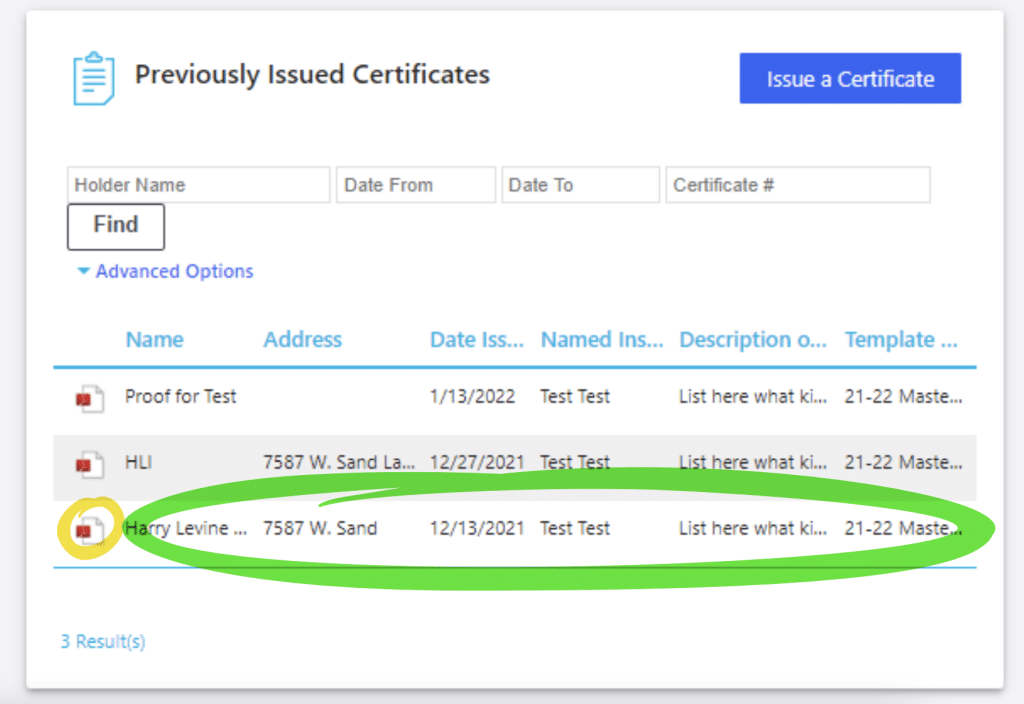
3. The Previously Issued Certificates screen is a list of all previously issued certificates. You can use the Search fields to search by Holder name, Date, etc.
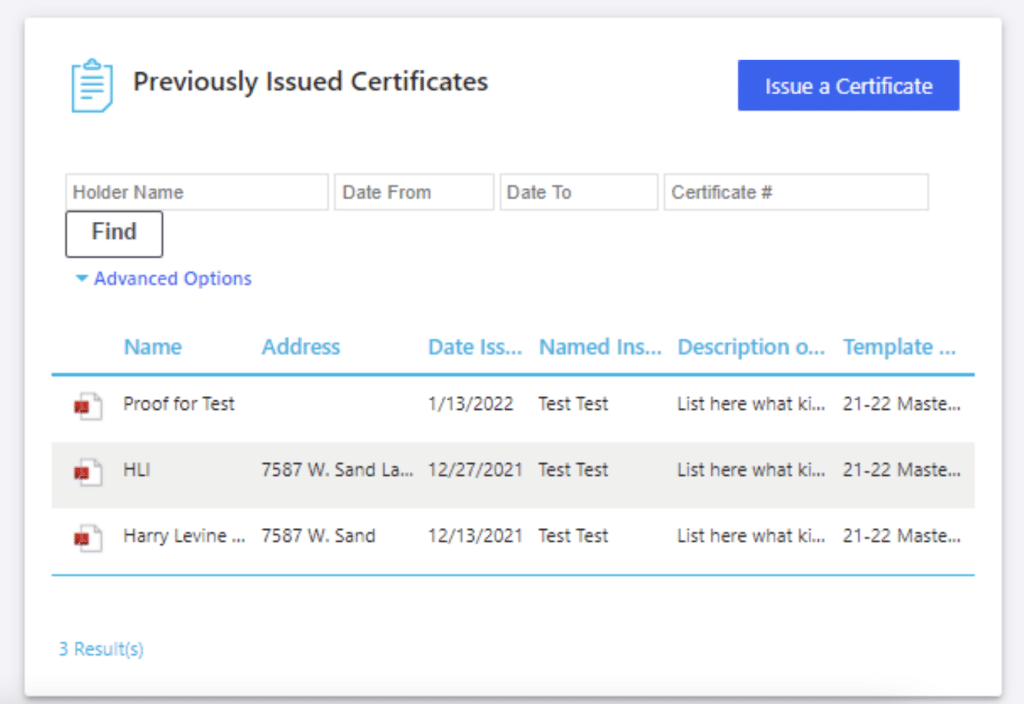
4. If you are using the search function once you click Find, the list should show you possible results, otherwise all previous certificates will be displayed as below:
5. Click the “Preview” button to see a watermarked version of the original (highlighted in yellow). If wanting to print a non-watermarked copy of the original, or if wanting to resend the original, click on the holder name itself (highlighted in green).
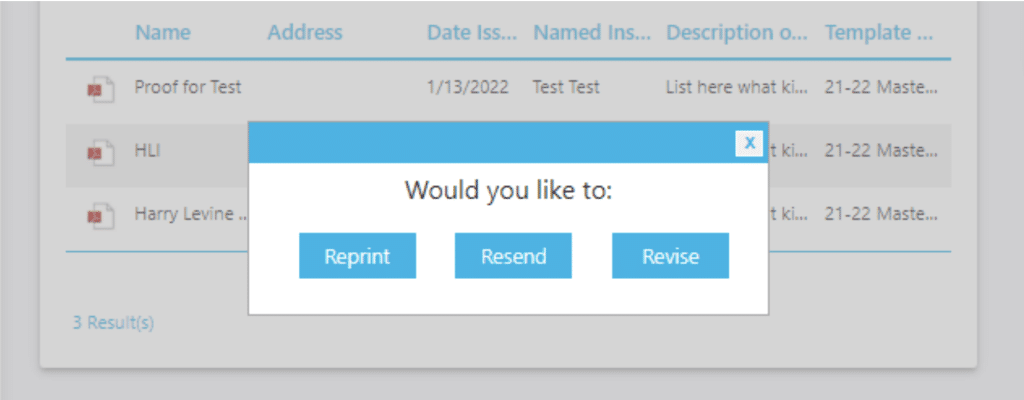
6. An option box appears:
Reprint: Downloads a PDF copy of the original for printing.
Resend: Sends a copy of the original again. You are given a chance to update Recipient information if needed before sending. Click Submit at bottom to resend.
Revise: Creates a new certificate based on original. (Saves time by pulling in holder information to new certificate.) Certificate will have a new issue date. This option is really the same as following the procedure to issue a new certificate, then copying the holder .